
The danger of the ClickFix attack is how it exploits user behavior.
A user may run with scissors if running is allowed, and ClickFix simply tells them to run faster. Windows ships with three such behaviors that are allowed, none of which a standard user needs.
Close them.
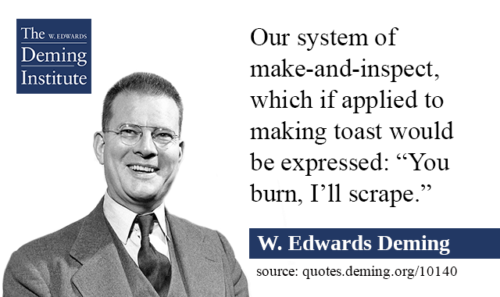
Seven steps are provided below using a ShouldDo-HowTo-Check triad, with apologies to Shewhart’s “specification, production, inspection” cycle. It occupied post-war Japanese engineers recast as the famous Plan-Do-Check-Act (PDCA) that Deming technically preferred to teach as Plan-Do-Study-Act.
The following steps apply to the User OU on their machine OS and to the session host image on VDI and thin-clients.
Download this guide as PDF –> 
1. Disable Run
Do: Remove the Run dialog for every standard user.
How: Group Policy, User Configuration > Administrative Templates > Start Menu and Taskbar > Remove Run menu from Start Menu: Enabled. Apply to the Users OU. The same policy removes New Task from Task Manager and blocks UNC paths and drive letters typed into the Explorer address bar; test file-share workflows first.
Check: As a standard user, Win+R does nothing. reg query HKCU\Software\Microsoft\Windows\CurrentVersion\Policies\Explorer /v NoRun returns 0x1.
2. Disable Win+X
Do: Remove the Win+X terminal shortcut for standard users.
How: Group Policy Preference, User Configuration > Preferences > Windows Settings > Registry: HKCU\Software\Microsoft\Windows\CurrentVersion\Explorer\Advanced, string value DisabledHotkeys = RX. Win+E and Win+D keep working. Confirmed on Windows 10; test on Windows 11 before rollout. The blunt alternative removes every Windows-key combination: User Configuration > Administrative Templates > Windows Components > File Explorer > Turn off Windows Key hotkeys: Enabled.
Check: After sign-out, Win+X does nothing.
3. Deny interpreters to standard users
Do: Block powershell.exe, pwsh.exe, cmd.exe, mshta.exe, wscript.exe and cscript.exe for the Users group. Allow them to one named group.
How: AppLocker scopes rules to users and groups: publisher rules, deny on Users, allow on the named group, executable and script collections both enforced, Application Identity service set to Automatic. App Control for Business is the stronger enforcement and is device-wide, so the named group’s machines get their own policy. Both run on Pro, Enterprise and Education from Windows 10 version 2004. Two weeks in audit mode, read events 8003 and 8006, then enforce. Remove the PowerShell 2.0 engine where it still exists (Windows 10, Windows 11 23H2 and earlier; 24H2 and Server 2025 no longer ship it): Disable-WindowsOptionalFeature -Online -FeatureName MicrosoftWindowsPowerShellV2Root.
Check: As a standard user, powershell.exe and cmd.exe are refused. In any PowerShell host that still opens, $ExecutionContext.SessionState.LanguageMode returns ConstrainedLanguage. Get-WindowsOptionalFeature -Online shows the V2 engine Disabled.
4. Keep the paste warning
Do: Leave the Windows Terminal paste warnings on.
How: Both ship enabled. settings.json: “multiLinePasteWarning”: true and “largePasteWarning”: true. No policy exists; a user can turn them off. macOS 26.4 Terminal warns on a pasted command, once per session, with an override.
Check: Paste two lines into Windows Terminal. The warning appears.
5. Log the attempt
Do: Enable script block logging and command-line auditing. Ship both to the SIEM.
How: Computer Configuration > Administrative Templates > Windows Components > Windows PowerShell > Turn on PowerShell Script Block Logging: Enabled. Computer Configuration > Administrative Templates > System > Audit Process Creation > Include command line in process creation events: Enabled. Advanced Audit Policy > Detailed Tracking > Audit Process Creation: Success. Two alerts: powershell.exe with explorer.exe as parent; Invoke-RestMethod piped to Invoke-Expression.
Check: Microsoft-Windows-PowerShell/Operational shows Event 4104. Security shows Event 4688 with a command line. A member of the named group pipes irm of an internal URL to iex; the alert fires within five minutes.
6. Name the exceptions
Do: Put every account that needs Run, Win+X or an interpreter into the named group.
How: Ticket, owner, 90-day review, membership change logged.
Check: The group has an owner and every member has a ticket.
7. Train last
Do: Tell users the rule is about the action, not the story. No website, chatbot, meeting link, update notice, error dialog or “backup server” ever asks them to press Windows keys, open a terminal or paste a command. The pretext changes weekly (captcha, “Fix it,” broken Teams call, premium upgrade, Cloudflare check); the paste is the attack.
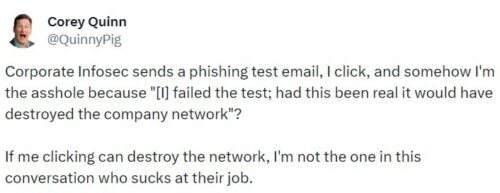
Check: The phishing simulation rotates the pretext each quarter and never repeats the captcha twice in a row.
References

- Microsoft Threat Intelligence, Think before you Click(Fix): Analyzing the ClickFix social engineering technique, 21 August 2025
- Microsoft Threat Intelligence, TerminalFix campaign deploys a reverse tunnel through multistage intrusion, 28 August 2026
- BSI, Cybersicherheitswarnung BITS-B 2026-287419-1032, 4 September 2026
- Recorded Future Insikt Group, ClickFix Campaigns Targeting Windows and macOS, CTA-2026-0325, 25 March 2026
- ASD’s ACSC, ClickFix distributing Vidar Stealer via WordPress targeting Australian infrastructure, 7 May 2026
- Unit 42, Fix the Click: Preventing the ClickFix Attack Vector, 10 July 2025
- Fortinet FortiGuard Labs, Havoc: SharePoint with Microsoft Graph API turns into FUD C2, 3 March 2025
- MITRE ATT&CK, T1204.004 User Execution: Malicious Copy and Paste
- NSA, CISA, NZ NCSC and NCSC-UK, Keeping PowerShell: Security Measures to Use and Embrace, 22 June 2022
- Microsoft, Remove Run menu from Start Menu, Group Policy administrative template text
- Microsoft, Windows+X is not really Windows+X, on the Turn off Windows Key hotkeys policy and NoWinKeys
- Microsoft Q&A, Turn off shortcut keys, DisabledHotkeys under Explorer\Advanced
- Microsoft Learn, about_Language_Modes, Constrained Language Mode under AppLocker and App Control
- Microsoft Learn, App Control for Business and AppLocker feature availability
- Microsoft, Windows Terminal Preview v1.2.2022.0 release notes, largePasteWarning and multiLinePasteWarning
- BleepingComputer, Apple adds macOS Terminal warning to block ClickFix attacks, 30 March 2026
- Microsoft Learn, about_Logging, Script Block Logging and Event 4104
- Microsoft Learn, Command line process auditing, Event 4688 with command line
- BleepingComputer, Custom ChatGPTs push ClickFix attacks to deploy RAT malware, 29 September 2026 (Huntress)